
Autopsy
Autopsy
is the premier open source forensics platform which is fast, easy-to-use, and capable of analyzing all types of mobile devices and digital media.
Workflow Overview:
to start we will have to do a few steps:
- Create/open the case for the data source you will investigate
- Select the data source you wish to analyze
- Configure the ingest modules to extract specific artefacts from the data source
- Review the artefacts extracted by the ingest modules
- Create the report
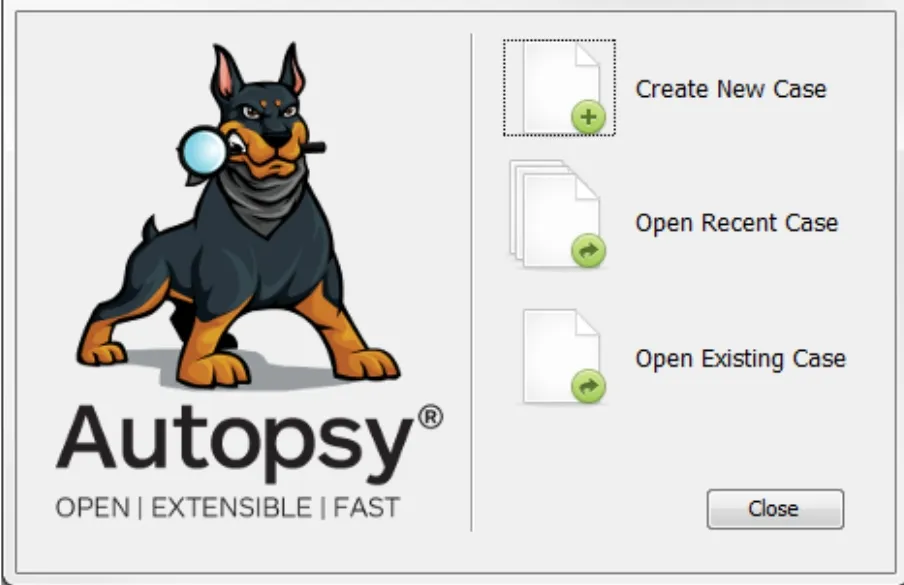
the welcome tab have 3 functions :
create a new case: its when you are the open starting the investigation
open recent and lastly existing case
Data Sources:
Autopsy can analyze multiple disk image formats.
- Raw Single (For example: *.img, *.dd, *.raw, *.bin)
- Raw Split (For example: *.001, *.002, *.aa, *.ab, etc)
- EnCase (For example: *.e01, *.e02, etc)
- Virtual Machines (For example: *.vmdk, *.vhd)
Ingest Modules:
are plug-ins Each one is designed to analyze and retrieve specific data from the drive. You can configure Autopsy to run specific modules during the source-adding stage or later by choosing the target data source available on the dashboard.
interface:
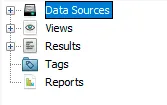
Tree Viewer has nodes:
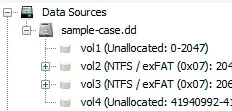
- Data Sources all the data will be organized as you would typically see it in a normal Windows File Explorer.
- Views - files will be organised based on file types, MIME types, file size, etc.
- Results - as mentioned earlier, this is where the results from Ingest Modules will appear.
- Tags - will display files and/or results that have been tagged.
- Reports - will display reports either generated by modules or the analyst .
Result Viewer:
When ****a volume, file, folder, etc., is selected from the Tree Viewer, additional information about the selected item is displayed here.
i fell decimation will take a lot of time so from here on with tools i i will attach good videos